Category: Build a Website

  • HostGator, Wix, Weebly: 3 Websites Built & Compared

    Is HostGator better than Wix and Weebly?

    The short answer is…

    (1) HostGator is the least expensive for the first two years,

    (2) Weebly is the easiest to use (unless you know certain things about Wix which I explain later in this article, and then Wix is the easiest to use) and

    (3) Wix has the best designs.

    So which one is better?

    At first glance, the answer seems pretty obvious, right?

    It’s whichever category—price, ease to use or appearance—is the most important to you.

    But what if two categories (or all three categories) are equally important?

    That’s what happened to me, and here’s what I did to figure it out.  

    But first there’s something you need to know: I’m website challenged.

    I struggle with design.

    I’m not techie.

    And I get hung up on small details that stop me dead in my tracks BUT (and it’s a big “but”), I don’t want to pay a website designer to build a website for me. For better or for worse, I’m stuck with me.

    The HostGator, Wix, Weebly Experiment

    So, to figure out which website builder worked best for me I ran an experiment where I built the same website (content, theme picture, pages, including a blog) on three different website builders (HostGator, Wix, Weebly).

    This is how I compared them: 1. ease to build 2. price, and 3. appearance.

    HostGator, Wix and Weebly are all drag and drop website builders.  And, believe me, that’s what you want if you’ve never built a website before.

    You already know the ending of the story. I found that…

    Weebly is super easy to use.

    HostGator is the cheapest for the first two years.

    Wix has the best designs.

    But there’s more to this story than meets the eye.

    Once you see the websites that I created and start to think about building your own website, your opinion about which category is the most important for you might just change.

    It did for me.

    By the way, if you’re really want your blog to be the central feature of your website (at least one blog post per week), read this first.

    Before we get started with the comparison, I want to be crystal clear and tell you that the Hostgator, Weebly and Wix links below are affiliate links.

    That means if you purchase through one of them I get a commission. But you don’t pay more for purchasing through a link.

    I also want to mention that I chose these 3 website builders to compare because I have researched and built websites on all three platforms. And I only recommend products/services that I think are helpful.

    If you do sign up through a link, thank you for supporting my work.

    And if you ever have a question/issue regarding Hostgator, Wix or Weebly, come to me, let me know below and I’ll make sure that you have an answer/solution.

    This is my email address: mark@makethemostofmassage.com

    Sound good?

    Okay, let’s get down to business.

    1. Ease to Build

    Here are my EASE TO BUILD rankings:
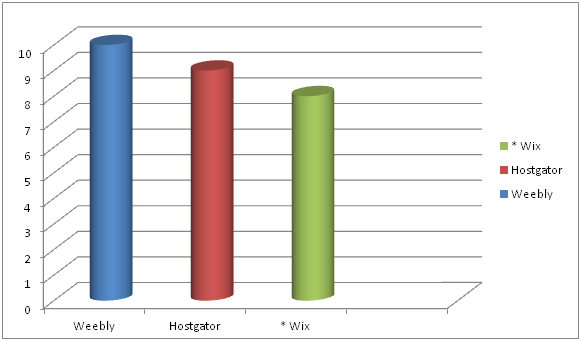
    First you need to know that all three website builders–Weebly, HostGator, Wix–are solid website builders and doable for the novice website builder.

    Wix can be the most difficult because it has many more design options for the users than Weebly and HostGator.

    But note that there is an asterisk next to Wix.

    Why?

    Because Wix has a design feature that makes things way easy.

    Combine that with some key hints about navigating the Wix dashboard and Wix was easier for me than Weebly. More about that later.

    HostGator is very straight forward and easy to use, but with a couple of things not quite as easy to use as Weebly.

    Mobile View

    For instance, when you’re building your website you’ll be building a desktop version and a mobile version.

    So, basically what is built on the desktop needs to get smooshed into the the mobile version.

    Well, not exactly smooshed.

    But it’s not going to look the same as your desktop view because it’s going to have fit on a much smaller screen.

    With HostGator and Wix you always need to check what your mobile view looks like because their smooshing doesn’t always look right.

    With Weebly, you don’t have to monkey with your mobile version. In fact, you can’t.

    Weebly’s smooshing is supposed to represent the best version you could possibly have within their framework.

    That’s super easy for the person building the website, but it’s also the most limiting of the three in terms of being able to control your design.

    2. PRICE

    My ranking order for PRICE goes:
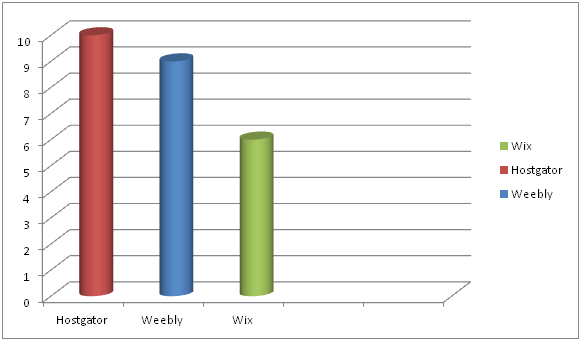
    HostGator nudges out Weebly in terms of best pricing–but only for the first two years.

    Before I get into the details of the whole pricing picture I want to talk about Weebly and Wix’s free website builders.

    They are like writing you contact info on a napkin and calling it a business card.

    Okay, maybe not quite that bad, but unprofessional in my book.

    For one, your domain name will be complicated and look cheap.

    If your business in called Annie’s Massage and you own the domain name www.anniesmassage.com, your free version web address will be something like www.anniesmassage.com/wixfree or www.anniesmassage.com/weeblysite.

    Imagine putting the free version web address on your business card.

    It’s going to look unprofessional.

    And are potential clients going to remember to do the / and type in everything after that?

    The other big issue with the free versions is that your websites will have ads them that you don’t control.

    Hopefully none that advertise for Hand & Stone. Lol.

    Website Builder Essentials

    Here’s what I think is important when purchasing a website builder package:

    No ads if possible.

    Free domain name.

    A basic plan. (You don’t need the PRO, BUSINESS or GALAXY website package deal).

    Ideally, it’s more professional looking to have email with your domain name address, but you don’t need that right away.

    Okay, now to the pricing of the paid plans.

    Website with Domain Name Email Pricing

    To keep things clear, below is the pricing structure if you purchased your website builder/service at the cheapest offering of each provider with domain name email.

    HostGator’s cheapest offering requires a 2-year commitment paid upfront.

    Weebly’s cheapest offering requires a 2-year commitment paid upfront.

    Wix’s cheapest offering is month-to-month.

    HostGator Wix Weebly
    $46.08 ($3.84/month
    for a website)  
    $156 ($13/month for a website)   $48 ($4/month
    for a website)  
    $60 ($5.00/month for email)   $60 ($5.00/month for email)   $60 ($5.00/month for email)  
      $106.08/year     $216.00/year   $108.00/year

    Cheaper Pricing

    If you want to just use your personal email instead of a domain name email, you could knock off $60 across the board.

    HostGator Wix Weebly
    $46.08 ($3.84/month for a website)   $156 ($13/month for a website)   $48 ($4/month for a website)  
    $46.08/year   $156.00/year $48.00/year

    HostGator and Weebly are quite the price deals. But there is more to this pricing.

    After 2 years, the HostGator $3.84 special pricing goes to normal pricing of $7.68/month.

    So, HostGator will save you a few bucks over Weebly the first two years but it will cost your more the subsequent years.

    Long term Weebly is the better price deal, BUT also worth noting is that if you go with the cheapest HostGator plan there will be NO ads on your website.

    The cheapest Weebly plan has Square ads. You have to upgrade to Pro ($12/month) to get rid of the Square ads.

    Years Cheapest Price Advantage Disadvantage
    1 & 2   HostGator HG – $46.08/yr
    W – $48/yr
    No ads on website
    After 2   Weebly W – $48/yr
    HG – $92.16/yr
    Square ad on website

    At this point, if you’re super-economizing, you’re thinking it’s a toss up between HostGator and Weebly.

    But there’s a wild card that we haven’t talked about. And it’s: What is the website going to look like?

    3. APPEARANCE

    Here are what my three websites look like: 3 Website Video

    Which one do you like better?

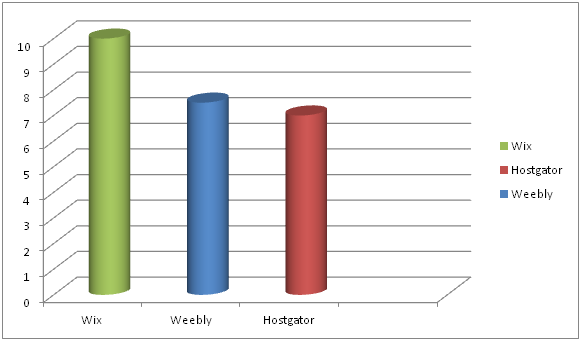
    If you’re like me, you like the look of the Wix Test Site the best.

    My APPEARANCE ranking goes:
    But wait, is it a fair comparison?

    There seems to be a lot more pictures on the Wix website.

    Well, I started out this experiment by saying that I was going to use one stock image and the same content on each website.

    I built the HostGator and Weebly websites first—and I was, for the most part, able to do that no problem.

    The Wix Experiment

    Then I got to Wix and the experiment started to unravel.

    Why?

    Because Wix’s designs are like a paint-by-numbers picture.

    And you don’t want to leave out a color because you want your painting to look exactly like the picture on the box!
    Seriously.

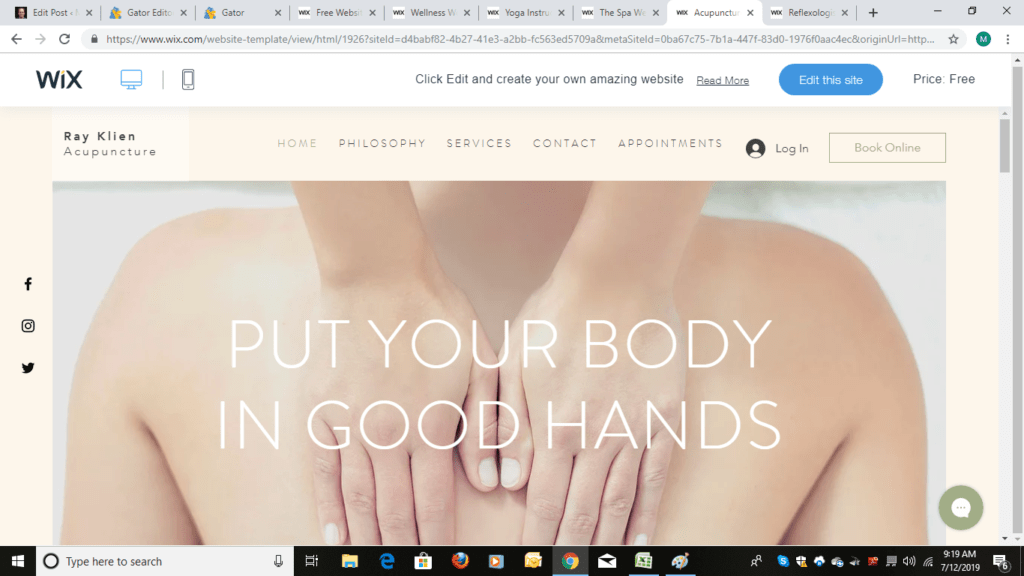
    For starters Wix has templates designed for massage therapists, not just spas.

    That’s huge because then you have to do less editing to make the template work for you.

    But my initial experience using Wix wasn’t all angels singing.

    It was punctuated with moments of me grabbing my face and wanting to pull it off in frustration until I figured out things on the navigation dashboard and started using ADI (Artificial Design Intelligence).

    Then it was smooth sailing.

    So, if you ultimately do go with Wix, I don’t want you pulling your face off.

    I made you a How Not to Pull Your Face Off with Wix Cheat Sheet and I walk you through using ADI at the end of this article.

    Once I had my cheat sheet and went the ADI route my EASE TO USE rankings changed to:
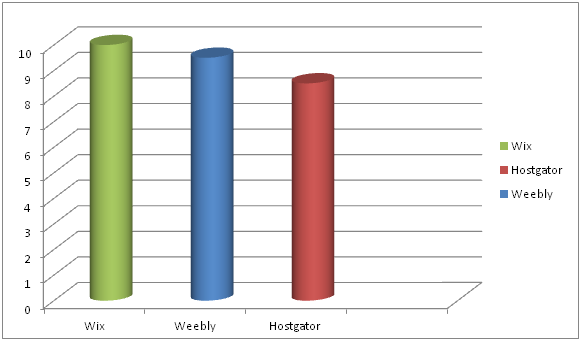
    By the way, if you’re good at design, Wix gives the most control of what you can change in the design element.

    So, as you may have guessed by now, the appearance category which was 3rd in my ranking as to what was important initially moved to 1st as I went through the experiment of building a website on Wix.

    But that’s me.

    What about you?

    HostGator

    Go with HostGator if you want a great PRICE with no ads.

    Click on Starter package.

    Then on the next page you fill everything else out including domain name.

    Weebly

    Go with Weebly if you want a great long-term price and you don’t mind having a Square ad on your website. (You can always upgrade to get rid of the ad at anytime.)

    Here’s how to get through checkout on Weebly without getting lost.

    If you select the Connect option you’ll get more pricing options, but first Weebly wants you to sign up.

    Now comes the other pricing options in Connect:

    The 2-year Connect option is $4/ month (the 2 years need to be paid upfront).

    The 1-year Connect is $5/month (the 1 year needs to be paid upfront).

    You can also go month-to-month for $8/month.

    The ProPlan at $12 gets the Square ad off your website.

    Once you select your plan you will be taken to the payment section:

    Fill that out and you’re in. You’ll go to your dashboard and then select a domain name if you don’t already have one.

    Wix

    Go with Wix if APPEARANCE and EASE TO USE (following my tips) are number one on your list.

    And you can totally experience Wix ADI before you even whip out out your credit card.

    Here’s how you do that. Go here and click on Start Now.

    Then click on sign up.

    After you sign up (no money paid) the coolness begins.

    Start answering the questions.

    Keep going.

    Because you will quickly get to a screen…

    …that says this: ADI (Artificial Design Intelligence)!

    It will only take a few more minutes to answer questions like this:

    You can see where this is going.

    And before you know it…

    You are here.

    And BOOM your website design is practically done.

    Changing things like theme colors is simple and ADI offers suggestions.

    You can finish the entire website without paying.

    BUT if you want your domain name attached to the site with no ads and want the ability to sell gift certificates, take credit cards, do online bookings and run a business then go to the upgrade tab and purchase the $13/month plan.

    And if you go with Wix here is your cheat sheet. Below that is help with content on your website.

    How NOT to Pull Your Face Off with Wix

    1. Don’t ever use their internal “search for help”. It will make you bang your head against the wall. Do a Google search instead.

    2. If you want to save time and don’t fancy yourself a designer, try their ADI (Artifical Design Intelligence) option, like I just showed you. That’s what I did and it worked like a charm.

    It will ask you a series of questions and then provide you some template options based on your answers.

    Key words that I went with were “massage therapist” and “minimal”.

    3. Don’t be afraid to delete a section if it doesn’t work for you.

    4. Check mobile view and edit it if you need to.

    One of my issues in the mobile view was wording in on one section of my website was washed out because of the background picture.

    You can go to advanced features and mess with stuff or you can simply click on the section in mobile edit and select a new design for that section.

    Content for your Website

    After you’ve selected a website builder (or if you have one already), go to Step #2 in my How to Build a Massage Website Guide so that you can create your Home, About and Services page.

    Keep the momentum going!

    There’s only one more NOT-big step after Step #2.

    Soon you’ll have a brand, spanking new (and effective) website!

    Remember if you have a website question about Hostgator, Weebly or Wix, I’ve got you’ve covered:-)


  • The Best Massage Website Design 2019

    Who has the best massage website design–Weebly, Wix or Hostgator?

    Wix.

    Okay, nice chatting, Mark.

    Not so fast.

    I like Wix the best for massage website design options, but you may like Weebly or Hostgator better.

    How will you know?

    Well, in a minute I’m going to take you behind the scenes with Weebly, Hostgator and Wix so that you can look at and compare all the massage templates before you decide which website builder that you want to use.

    But first, I want to explain the two things that I think are important when choosing a massage website design.

    1. Appearance

    A good website design needs to look professional.

    That means no pictures out of focus.

    No design that looks dated.

    And no UN-friendly mobile view.

    The website design should also have easy…

    2. Navigation

    No “Where the hell is that menu icon?!”

    No unnecessary menu items.

    And no print so small that you can’t read anything until you enlarge it.

    After all, it’s challenging enough to get in front of an online customer.

    We don’t want the website to turn the customer away, right?

    So, those are my basic criteria for choosing a massage website template.

    One more thing before I show you the massage website designs, some links on this page are affiliate links.

    That means I get a commission if you buy through one of the links.

    You don’t pay anymore if you click through one of my links. And if you do, I want to say a big-time THANK YOU for supporting my work.

    By the way, if you ever have any questions about Weebly, Wix or Hostgator just let me know–mark@makethemostofmassage.com.

    Now, let’s have a look at Weebly, Wix and Hostgator website design options:

    Weebly Massage Website Designs

    Weebly has one massage website design option.

    That said, you can adapt other themes, like a yoga design, to create a massage website.

    Here is the Weebly massage option:

    To check out all the Weebly website design options (including the massage design) click here.

    To get to the massage design click on the Businesss heading. The massage theme is in the lower right corner.

    On to Hostgator.

    Hostgator Massage Website Designs

    Hostgator has 5 massage spa options.

    This one is designed for the single practitioner.

    Hostgator doesn’t give you an option to play with the designs during the pre-purchase phase. So, I went into my account and did this quick video so that you get a feel for what they offer in terms of design.

    So which one do you like better so far? Weebly or Hostgator?

    There is one more to add to the mix: Wix.

    Wix Massage Website Design Options

    Wix has 2 body-worker templates and 3 spa designs. I like Wix’s stock pics, and I’m a fan of this body-worker website design.

    Wix also has a lot of designs that could be easily adapted to create a massage website, like this yoga template:

    Check out all the Wix massage website designs here.

    Scroll down to the bottom of the Wix page and click on See All Templates.

    The massage website designs are in the Wellness category which can be found on the left side of the Wix page.

    So, which massage website design do you like the best so far?

    It’s okay if Wix is not your favorite.

    We still good:-)

    One last thing, there’s a fine line between helpful information and information overload.

    If you’ve suddenly switched to information overload remember that you’re picking a website builder, not a heart surgeon.

    Either Weebly, Hostgator or Wix will get the job done.

    If you’re still up in the air regarding Weebly, Hostgator or Wix, this article should help you out: Hostgator, Wix, Weebly: 3 Websites Built and Compared.

  • Massage Website 101: How to Write an About Page

    Massage Website 101: How to Write an About Page

    How do you write an About page for your massage website?

    Find your unique massage story to tell the reader by asking yourself very specific questions.

    It’s not hard to do once you get your brain thinking in the right direction. A solid About page is essential to creating a simple but effective 3-tab website that includes a Homepage and a Services Page, as well as an About page.

    Let’s get started. Here are easy to use website builders.

    Once you have your website builder, then you have to add the content for the About, Services and Home pages.

    Okay, the Home and Services pages seem fairly straightforward, but the About page…that’s about you…crap… how awkward is that?

    Very.

    But I have strategy to help you out.

    Ready?

    Stop thinking that you have to pump yourself up on your massage About page.

    Instead think about how you can engage your customer.

    Massage About Page

    There’s a reason I say “massage About page” instead of “About page”.

    Start writing an About page without tethering it to massage and the next thing you know it’s a Facebook post about how much you love poetry and stamp collecting.

    Friends are interested that you like poetry and stamp collecting.

    Customers?

    Not so much.

    In order to engage a customer on an About page, you need to create your massage story.

    Wait, Mark, can’t I simply list my massage credentials and experience.

    You could.

    But if that’s all you do it doesn’t help the customer with her getting to know you.

    And quite frankly, it’s boring.

    A massage story engages the customer.

    Engagement makes the cell ring and can help boost your website in the Google rankings.

    Your massage story should reveal how you view and practice massage.

    [bctt tweet=”Think of an About story as event in your life highlighted to drive home a message.” username=”Mark LiskeyMarkLiskey”]

    Our Story

    For example, here’s the first paragraph from the About page of PressurePerfect™ Massage (the business my wife, Lisa, and I own):

    “My name is Mark Liskey, and I’m the co-owner of PressurePerfect™ Massage. My wife, Lisa Westfall, and I opened PressurePerfect™ Massage in August of 2014 because somewhere along the way the massage industry has forgotten who they serve—the customer.” (You can view the full About page here.)

    It’s a simple story.

    Big massage spas have changed the industry, and we don’t like the direction the industry has gone because customer service has been sacrificed. We opened our business in 2014 in response to this.

    How to Find Your Massage Story

    You can find your story by uncovering your “Aha!” moment.

    Your “Aha!” moment is that point in time where something moved you to act.

    For our business, it happened when Lisa and I experienced firsthand what it was like to work in a franchise massage-spa environment.

    To be honest, we were shocked.

    The client’s massage was cut from 60 minutes to 50 minutes.

    There were ten minutes to get one client off the table and the next one on the table.

    And clients were stacked back-to-back, so getting behind with the first client meant that you were really behind with the 4th or 5th client.

    This was NOT how we wanted to treat clients or massage therapists.

    If your “Aha!” moment is not apparent, sometimes it helps to ask yourself some questions.

    Here are some questions that I find helpful. I also provided hypothetical responses to show you how the answers to these questions can lead to a story.

    1. Why did you get your first massage?

    I needed to relax.

    1. Why’d you need to relax?

    I lost my job and a week before that my dad died. I was at my wits’ end and a friend gave me a gift certificate to see her massage therapist.

    1. What were you feeling during and/or after the massage?

    It was a Zen moment. I felt like it was the first time I had relaxed in years.

    1. What type of massage do you like doing?

    Relaxation because it relaxes me as I do it and I want clients to feel the same peace that I did when I had my first massage.

    Connecting the Dots

    Now it’s just a matter of putting these parts to together. A narrative might be:

    In May of 2013, I was at my wits’ end. My dad had recently died from a long illness and I had just lost my job. I had read books on de-stressing and started to do yoga at home, but no matter what I did, I just couldn’t turn the worry off.

    Then one day my friend Asha gave me a gift certificate to see her massage therapist. Honestly, I didn’t want to go. In fact, the thought of going created more anxiety. But I went.

    Admittedly, the first 5 minutes of the massage were rough, but then when Jaylah, the massage therapist, pressed at the base of my skull, I felt all the tension leave my body. From that moment on, I was putty.

    After carrying what felt like the weight of the world on my back for months, I suddenly felt unburdened. Yes, life’s stressors came back, but massage taught me that I could disconnect, power down and come out feeling recharged.

    My goal in massage is to give each client what Jaylah gave me: total relaxation when I needed it the most.

    Stay in the Moment

    If you find yourself struggling when writing your story, here’s an easy-to-implement tip: Go back and connect with the emotion around your “Aha!” moment.

    That emotion should drive the story.

    It will be compelling to the person reading your story.

    And when you feel this emotion as you write, it will give you the motivation to continue on.

    Your massage About Page

    Writing about yourself on your About page can seem weird, but it doesn’t have to be weird. Think of it as simply highlighting something in your massage life that could resonate with your customer.

    Your “Aha!” moment doesn’t have to be earth-shattering to be effective. In fact, most aren’t. It just needs to be genuine.

    To find your “Aha!” moment ask yourself questions about massage, like:

    1. Why did I get my first massage?
    2. What was I feeling when I got my first my massage?
    3. What type of massage do I like doing?

    Need more website help?

    I got it all right here:

    In this article I provide the links to 3 massage websites I have built using 3 different website builders.

    And I compare the 3 website builders in these categories: 1. Price, 2. Ease to Use, and 3. Appearance.

    Between the three, you should be able to find the one that works for you.

    Oh, and here’s my How to Build Website Guide for Non-Techies.

    Want My Latest Weekly Info?

    Sign up below. It’s free:-)

  • How to Save Money Building a Weebly Website

    I want to build the cheapest website possible.

    Hmm…are you sure about that?

    Or do you actually want to build the cheapest website possible using a reliable and easy-to-use website builder.

    If so, take a look at Weebly.

    Weebly is all three: easy to use, inexpensive and reliable.

    So, end of story?

    Not quite.

    Because when we look at Weebly pricing, you have more options than just buying straight from Weebly.

    You can buy through a web host.

    A web host provides storage space and the technologies for a website or web pages to be viewed on the Internet.

    And some web hosts, like Bluehost, have the Weebly website builder.

    I’m a fan of Bluehost because they have great customer service and they offer an inexpensive way to use Weebly.

    How inexpensive?

    You can do a three year term for $35.40/year.

    Dang dawg, that’s cheap, right?      

    But to make an informed decision about purchasing Weebly or Bluehost we need to seriously do an apples-to-apples comparison.

    Don’t worry, I’m not going to make this a big, hairy deal.

    I’m going to distill it to the essentials so you can get crackin’.

    One last thing before we get started, some of the links in this article are affiliate links.

    So, if you buy through a link I get one-time commission.

    But you don’t get charged extra if you do.

    And if you do, thanks for supporting my work!

    By the way, if you need help with Weebly, Bluehost or anything I recommend, email me at mark@makethemostofmassage.com 🙂

    Okay, onto Weebly and Bluehost for your inexpensive website.

    Weebly versus “Weebly on Bluehost”

    With Weebly you pay annually.

    With Bluehost you first buy a package which could be a one, two or three year plan. Then after the package terms are over you pay annually.

    If you want (1) the Weebly website builder, (2) email (with your domain name), and (3) free domain name for 1st year, here’s what the comparison looks like:

    1st Year
    Price
    Weebly (1 yr) Bluehost (1 yr) Bluehost (2 yr) Bluehost (3yr)
    Website
    Builder
    $60 $59.40 $47.40 $35.40
    Domain
    Email
    $60 0 0 0
    Domain name 0 0 0 0
      $120 $59.40 $47.40 $35.40

    Where’s that Bluehost link to click, right?

    But there is more to consider, Bluehost, like Weebly, wants its money upfront.

    So, if you signed up for the Bluehost 2 year deal, you’d pay $94.80 upfront for the 2 years.

    The Bluehost 3 year deal would cost you $106.20 upfront.

    Even so, 3 years of Bluehost ($106.20) is still cheaper than 1 year of Weebly ($120).

    Continuing on with Bluehost, after your 1, 2 or 3 year package deal is over, you will pay the regular price of $7.99/month ($95.88/year).

    Let’s make this a little cleaner.

      Year 1 Year 2 Year 3 Year 4
    Weebly $120 $120 $120 $120
    Bluehost 1 yr $59.40 $95.88 $95.88 $95.88
    Bluehost 2 yr $47.40 $47.40 $95.88 $95.88
    Bluehost 3 yr $35.40 $35.40 $35.40 $95.88

    (With both Weebly and Bluehost, you can get a domain name with them for free the first year. After that you pay for domain name renewal, which is usually between $15 and $20 a year.)

    It seems like a pretty easy decision right now, but Bluehost may not be for everyone because there are more steps to using the Weebly website builder.

    For one, instead of going straight to the Weebly website builder when you sign in on Bluehost, you go to your control panel where you can then select the Weebly website builder to use.

    If at any time you get confused and need some help, just call Bluehost customer service. They run 24/7.

    Another thing to consider is that Weebly does provide email support for the website builder under the basic plan that I’m using in this comparison, but Bluehost doesn’t.

    That said, the Weebly website builder is super-easy to you use.

    You can find the answer to probably any question you have about Weebly by doing a Google search or you can ask me.

    If you’re cringing at the thought of adding steps by using Bluehost, but going with Weebly at $120 a year is too much, you can always not purchase the Weebly email option ($60 a year) and only pay $60 total for the year.

    If you’re keen on having a professional presentation from the get-go (domain email address) for the least amount of money, then there are 4 things you need to do with Bluehost:

    1. Go with the Basic Plan to start.

    You can always upgrade later. 

    2. The cheapest Basic Plan will be the one that has the longest terms.

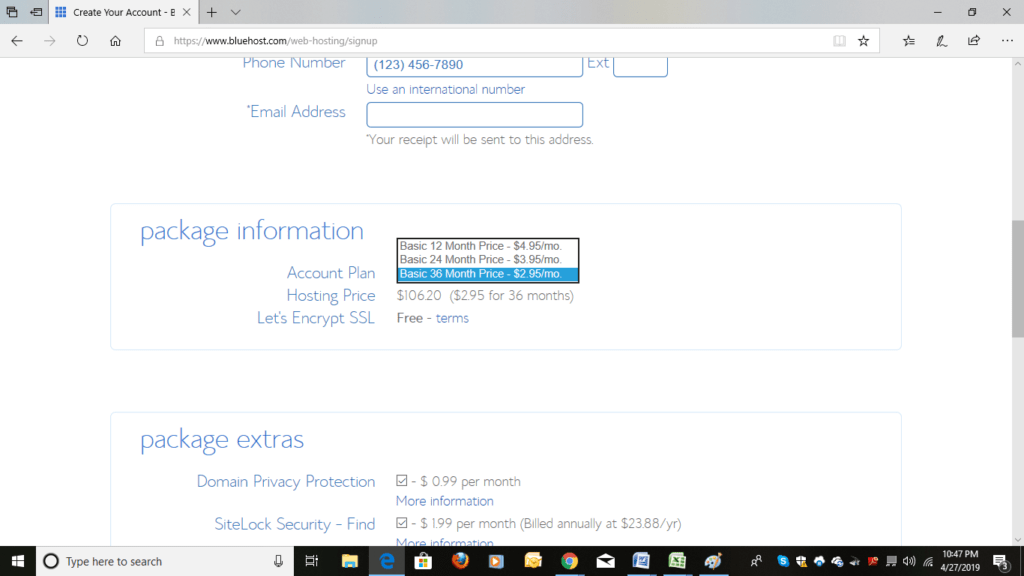
    In other words, the 3-year-plan ($2.95/month) will be month-to-month cheaper than the 1-year-plan ($4.95/month).

    My advice would be that if you’re all in with the blog idea, save money and go for 3 years.

    If it’s an experiment, sign up for 1 year. 

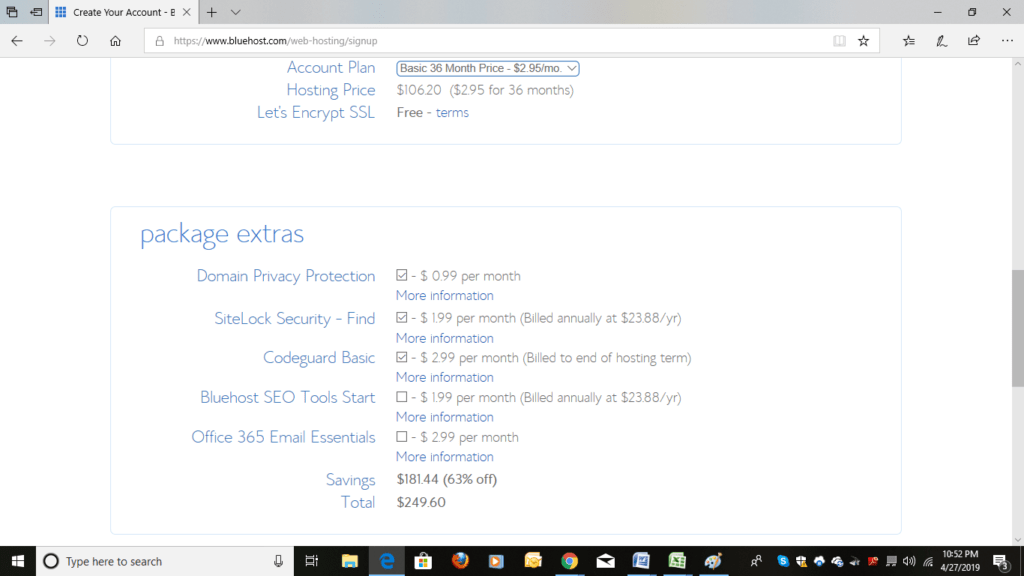
    3. All hosting companies will try to up-sell you on other stuff you don’t need, like domain privacy.

    See those boxes that they automatically check for you in the package extras section? Un-check them and save yourself some more money.

    So, your total should just be the price of your account plan.

    1 year Basic Plan = $59.40 ($59.40/year for 1 year).

    2 years Basic Plan = $94.80 ($47.40/year for 2 years).

    3 years Basic Plan = $106.20 ($35.40/year for 3 years).

    When buying a package you can’t pay month-to-month. You pay everything upfront to get the deal.

    4. Get Bluehost to Un-install WordPress

    When you purchase Bluehost they automatically install WordPress (another way to build a website.)

    You need to un-install that if you want to use Weebly on Bluehost.

    No, I didn’t screw you! Lol.

    Just call Bluehost (888-401-4678) and have them un-install it.

    No biggie.

    It will take them less than a minute.

    Lean on that customer support.

    In this video, I build a Weebly website on Bluehost.

    https://www.youtube.com/watch?v=vkfVeyxS-b8

    My Recommendations in a Nutshell

    Weebly Builder

    NOT techie: Go right to Weebly.

    To save the most $ using a Weebly website builder and have a domain email: Go with Bluehost.

    Multiple Websites

    If you plan on having more than one website use a web host service, like Bluehost.

    With Bluehost you’ll have to upgrade to the next level, but then you can build a whole lot of Weebly and WordPress websites for way cheap.

    Best Designs for a Website

    If appearance ranks #1 in your criteria for choosing a website builder, go with Wix.

    You can read more about that here.

    Content for a Website

    Don’t no what to write on your website?

    Check out: How to Build a Website Guide.

    And if you have a question about building a website.

    Let me know:-)